
Download Windows File Recovery – Free, Secure Data Recovery Tool for Windows, Mac, and More
Looking for a reliable, free data recovery tool for Windows? Windows File Recovery is a powerful, command-line-based software developed by Microsoft to help users retrieve lost files due to accidental deletion, drive formatting, corruption, or hardware failure. Designed specifically for Windows 10, 2004 and later, this lightweight tool supports NTFS, FAT, exFAT, and ReFS file systems, making it versatile for internal drives, external SSDs, SD cards, USB flash drives, and more.
While it lacks a graphical user interface (GUI), its deep integration with the Windows ecosystem and direct access to low-level disk operations make it a trusted choice for advanced users and IT professionals. Whether you’ve deleted a critical document, reformatted a drive, or experienced a sudden system crash, Windows File Recovery offers multiple recovery modes—including Standard, Template, and Signature—to maximize your chances of data retrieval. The tool is completely free, secure, and regularly updated by Microsoft, ensuring compatibility with the latest Windows updates and security patches.
For those who are new to command-line tools, helpful documentation is available at aka.ms/winfrhelp. With minimal resource usage and no third-party dependencies, this software is ideal for quick recovery tasks. Download Windows File Recovery today and safeguard your digital life with a tool built by the creators of Windows.
Key Features of Windows File Recovery
Windows File Recovery stands out in the crowded data recovery space thanks to its clean design, powerful recovery algorithms, and tight integration with the Windows operating system. Unlike many third-party tools that require installation, complex configurations, or subscription models, this software is lightweight and free. Here’s what makes it a must-have utility:
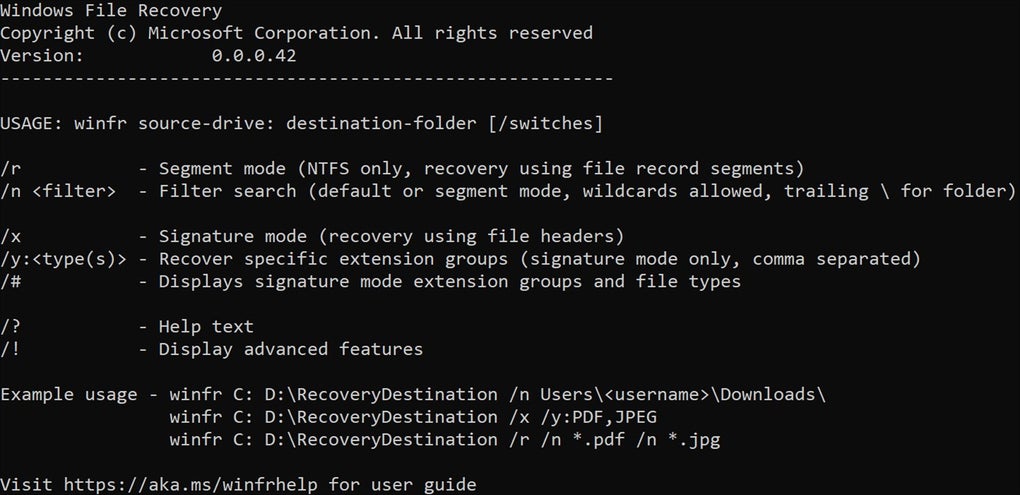
- Multiple Recovery Modes: Choose between Standard, Template, and Signature modes. Standard mode is ideal for NTFS drives and recovers files based on file system metadata. Template mode allows you to specify file types and recovery paths, while Signature mode scans for specific file signatures (like JPEG or DOCX), making it perfect for recovering files from corrupted or formatted drives.
- Support for Multiple File Systems: Works seamlessly with NTFS, FAT, exFAT, and ReFS—covering most storage devices used today, including external hard drives, SD cards, USB drives, and internal SSDs.
- File Type Compatibility: Recovers a wide range of file types: documents (DOCX, PDF), images (JPEG, PNG), videos (MP4, AVI), audio (MP3), archives (ZIP, RAR), and even system files.
- Command-Line Interface (CLI): Though not beginner-friendly, the CLI offers precise control, scripting capabilities, and automation options—ideal for system administrators and power users.
- Secure and Free: Developed by Microsoft, this tool is virus-free, doesn’t collect user data, and is regularly updated with security patches.
- Low Resource Usage: Minimal CPU and memory consumption ensures it runs smoothly without slowing down your system.
- Fast Recovery Speed: Especially in Standard mode, the tool can scan and restore files quickly, reducing downtime.
How to Install and Use Windows File Recovery
Installing and using Windows File Recovery is straightforward, though it requires some familiarity with the command line. Here’s a step-by-step guide to help you get started:
- Download the Tool: Visit the official Microsoft Store or use the direct link aka.ms/winfrhelp to download the latest version. The software is available as a standalone executable file.
- Open Command Prompt as Administrator: Press Win + X, then select “Command Prompt (Admin)” or “Windows PowerShell (Admin).” This ensures the tool has the necessary permissions to access disk drives.
- Run the Installation: Navigate to the download folder using the
cdcommand. For example:cd C:\Downloads. Then run the installer withWindowsFileRecovery.exe /install. - Launch the Tool: After installation, use the
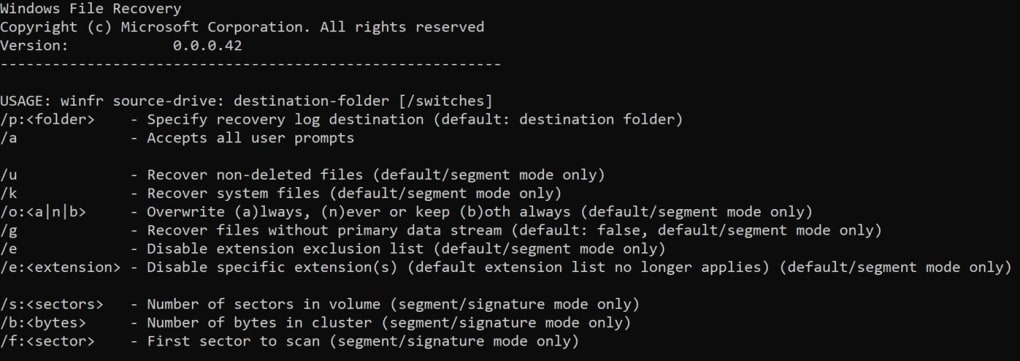
winfrcommand to launch the utility. - Select a Recovery Mode: Use the appropriate command syntax. For example, to recover files from a corrupted NTFS drive, use:
winfr C: /r:standard. ReplaceC:with your target drive letter. - Specify Output Location: Use the
/oflag to define where recovered files should be saved. For example:/o:C:\RecoveredFiles. - Monitor Progress: The tool will display real-time progress. Avoid using the source drive during recovery to prevent data overwriting.
- Review Recovered Files: Once complete, check the output folder for recovered files. Always verify file integrity before use.
For detailed instructions, refer to the official guide at aka.ms/winfrhelp. While the learning curve is steep for beginners, mastering the CLI unlocks powerful automation and batch recovery options.
Compatibility and System Requirements
Windows File Recovery is designed to work with modern Windows systems and is compatible with the following platforms:
- Windows 10, version 2004 and later (including Windows 11)
- Windows Server 2019 and 2022
- 64-bit systems only
The tool does not support older versions of Windows, such as Windows 7 or 8.1, nor is it available for macOS, iOS, or Android. However, since it’s built into the Windows ecosystem, it leverages native drivers and system APIs for maximum efficiency. It works with a wide range of storage devices, including:
- Internal HDDs and SSDs
- External hard drives and USB flash drives
- SD cards and memory cards from cameras and smartphones
- Network-attached storage (NAS) drives (when mounted as local drives)
It’s important to note that the tool must be run from an administrator account and should not be used on the same drive where data is being recovered. Always save recovered files to a different drive to avoid overwriting lost data. The software is lightweight and requires minimal disk space—under 10MB—making it suitable for systems with limited storage.
Pros and Cons of Windows File Recovery
Pros
- Free and Secure: No cost, no ads, no malware—developed and maintained by Microsoft.
- High Recovery Success Rate: Especially effective for NTFS and formatted drives.
- Multiple Recovery Modes: Offers flexibility for different recovery scenarios.
- Lightweight and Fast: Minimal system impact and quick scan times.
- Regular Updates: Microsoft releases updates to improve compatibility and fix bugs.
- Supports Diverse File Systems: Works with NTFS, FAT, exFAT, and ReFS.
Cons
- Lacks GUI: Command-line only—challenging for beginners.
- No Preview Feature: Cannot preview files before recovery.
- Not Ideal for Non-Technical Users: Requires learning basic CLI commands.
- Limited to Windows: Not available on Mac, iOS, or Android.
- No Built-in Backup Option: Focuses solely on recovery, not prevention.
Frequently Asked Questions (FAQ)
Is Windows File Recovery free to download and use?
Yes, Windows File Recovery is completely free to download and use. It’s developed by Microsoft and does not require a license or subscription. You can use it indefinitely for personal and professional data recovery tasks.
Can I recover files from a formatted drive using Windows File Recovery?
Yes, Windows File Recovery can recover files from formatted drives, especially when using the Standard or Signature mode. However, success depends on whether the data has been overwritten. The sooner you act, the better the chances.
What file types can Windows File Recovery recover?
The tool supports a wide range of file types, including documents (DOCX, PDF), images (JPEG, PNG), videos (MP4, AVI), audio (MP3), archives (ZIP, RAR), and more. Signature mode allows targeted recovery based on file signatures.
Do I need to install Windows File Recovery?
Yes, you must run the installer to register the tool. After installation, you can access it via the command line using the winfr command.
Can I use Windows File Recovery on Mac or Linux?
No, Windows File Recovery is only available for Windows 10 (2004+) and later. It is not compatible with macOS, Linux, iOS, or Android.
Conclusion: Is Windows File Recovery Worth It?
Despite its lack of a graphical interface, Windows File Recovery is a powerful, trustworthy, and free tool that every Windows user should consider. Developed by Microsoft, it offers reliable data recovery for accidental deletions, drive formatting, and corruption—especially on NTFS and other common file systems. While beginners may find the command-line interface intimidating, the benefits far outweigh the learning curve for those willing to invest time in mastering it.
With multiple recovery modes, strong file type support, and minimal system impact, it’s an excellent choice for both home users and IT professionals. For users who want a secure, fast, and free alternative to third-party recovery software, this tool is hard to beat. Download Windows File Recovery today and take control of your lost data—before it’s too late.







